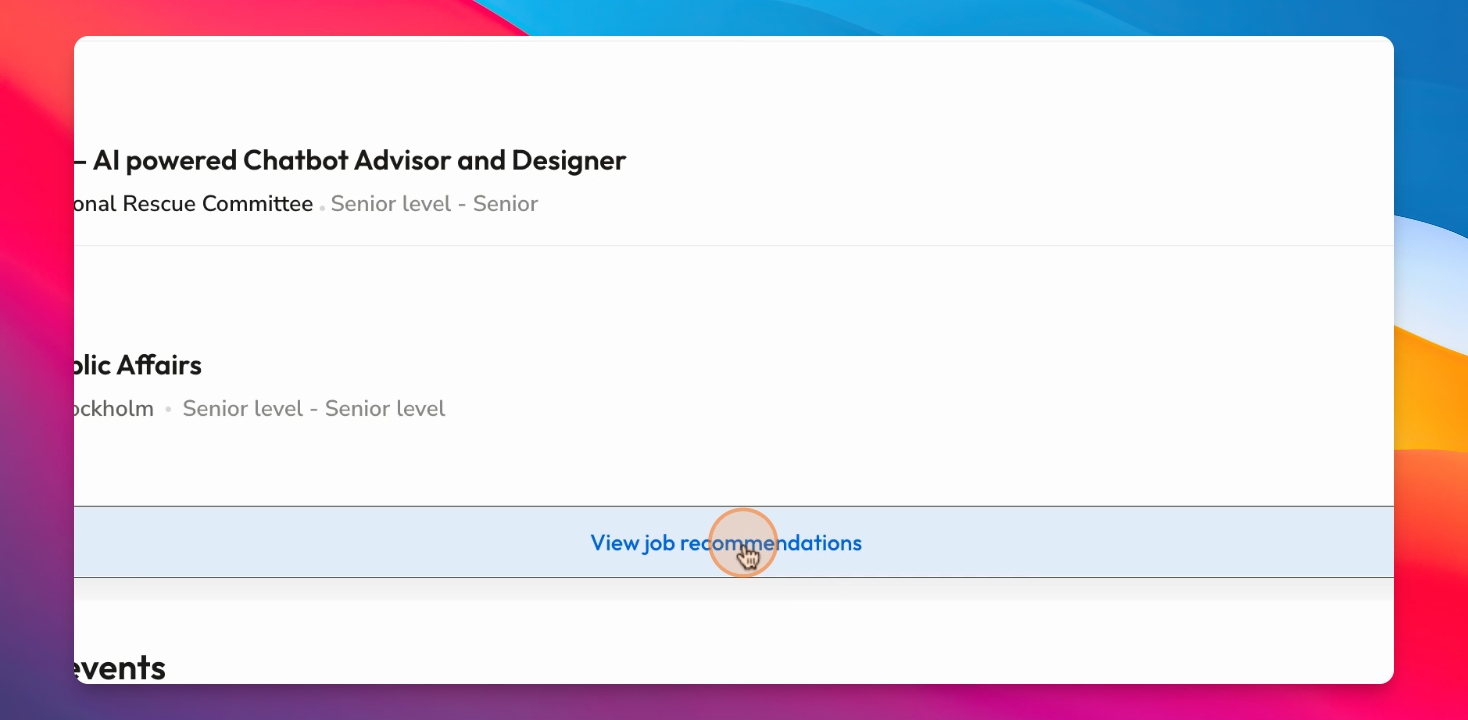

If you want to receive tailored job alerts or if your current job alerts are not accurate, go to the drop down in the top right.
Let's look at the steps:
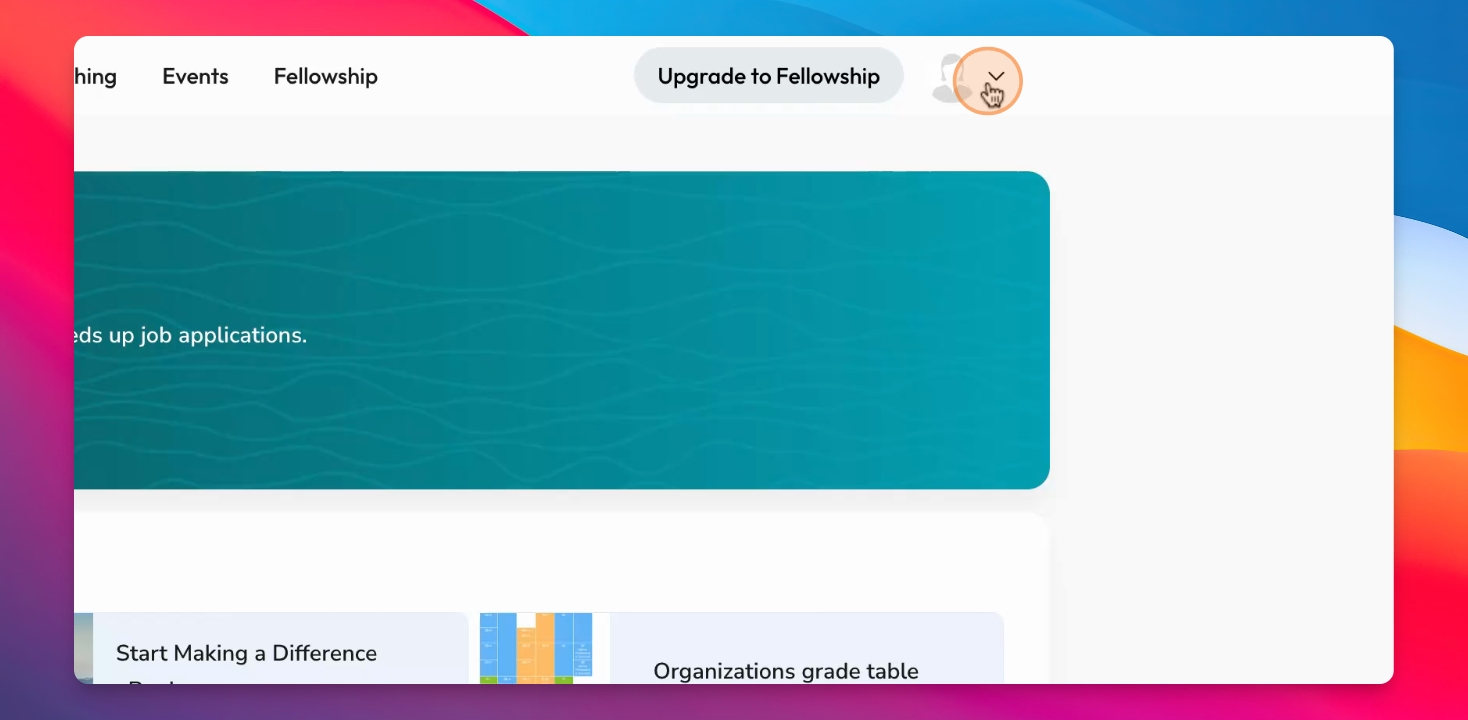
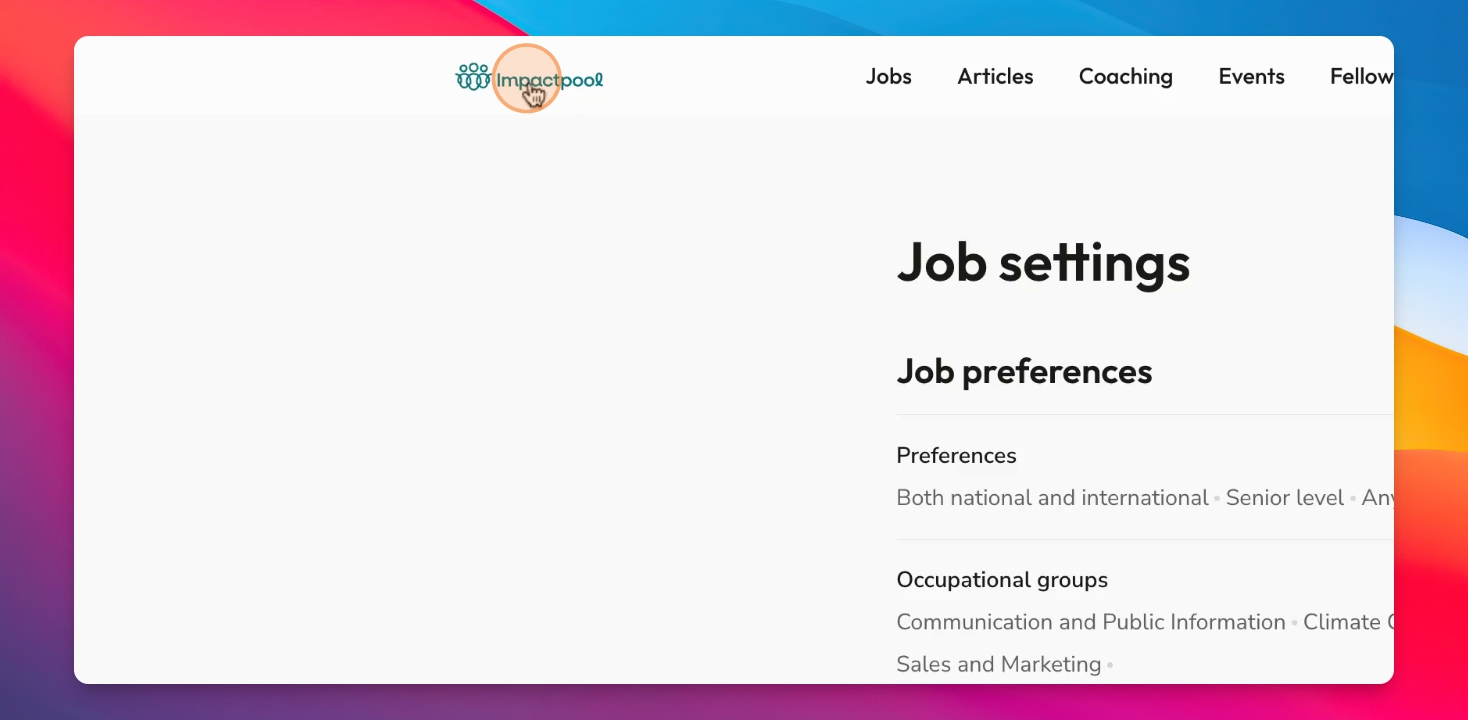
Step 1: Select Job Settings
Click on Job Settings from the dropdown menu.
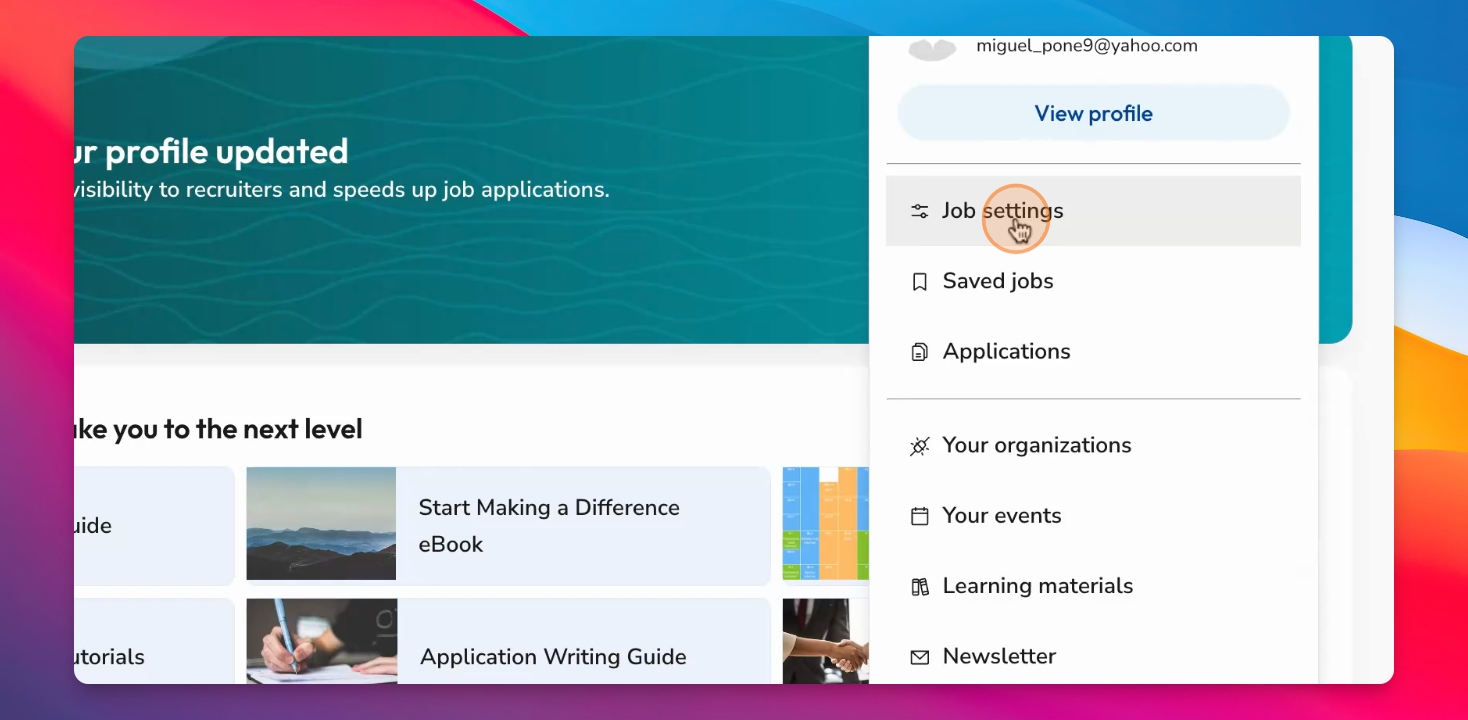
Step 2: Set Job Preferences
Here you will find options to set your job preferences including the level.
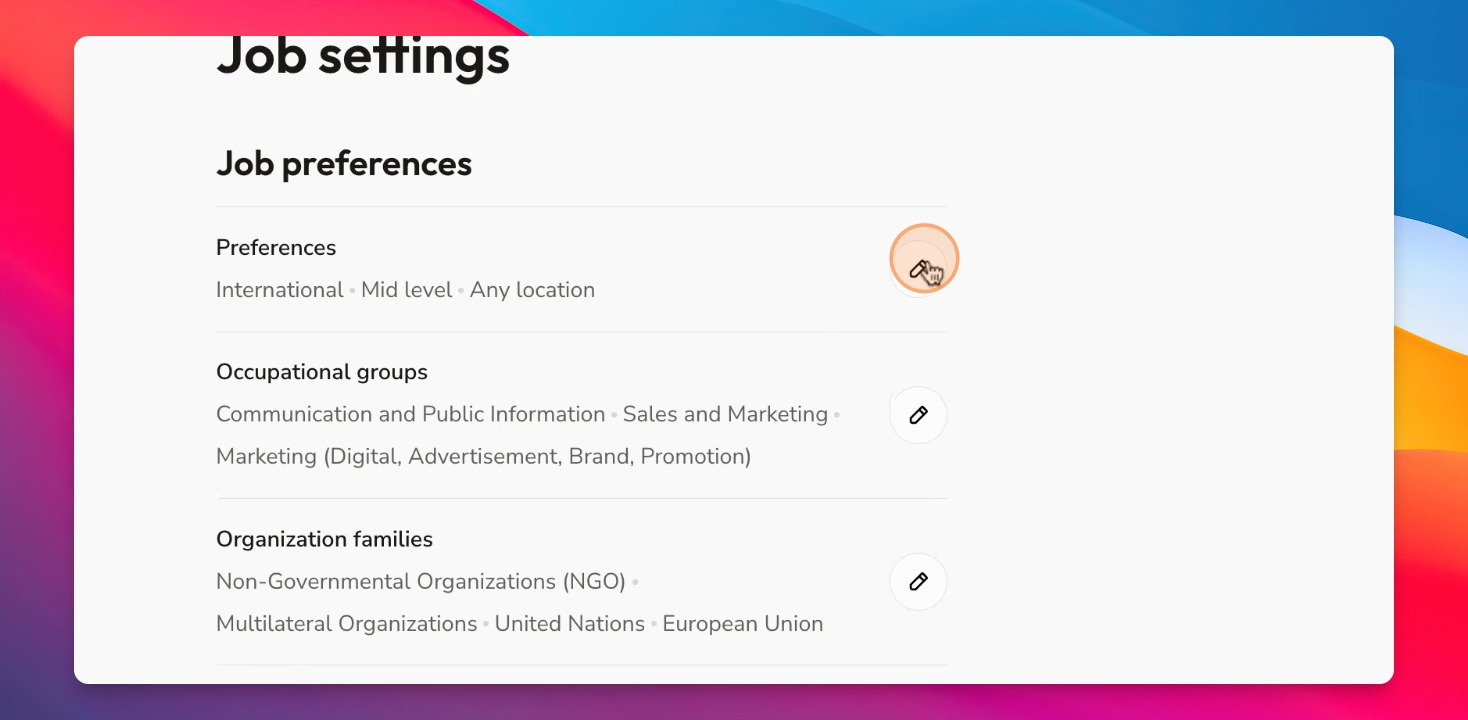
Step 3: Choose Job Level
Select the job level you prefer, from internship to senior executive.
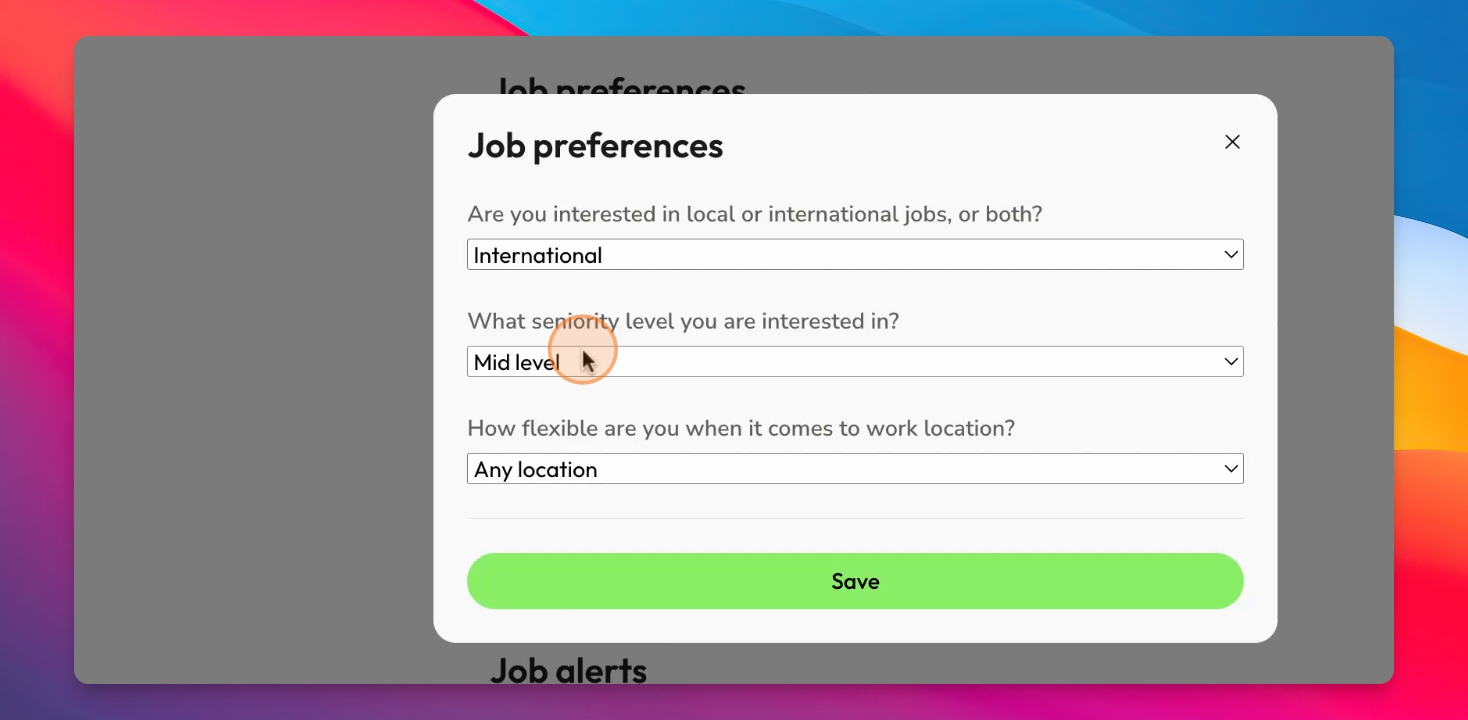
Step 4: Select Job Types
You can also choose roles such as consultancies and administrative support.
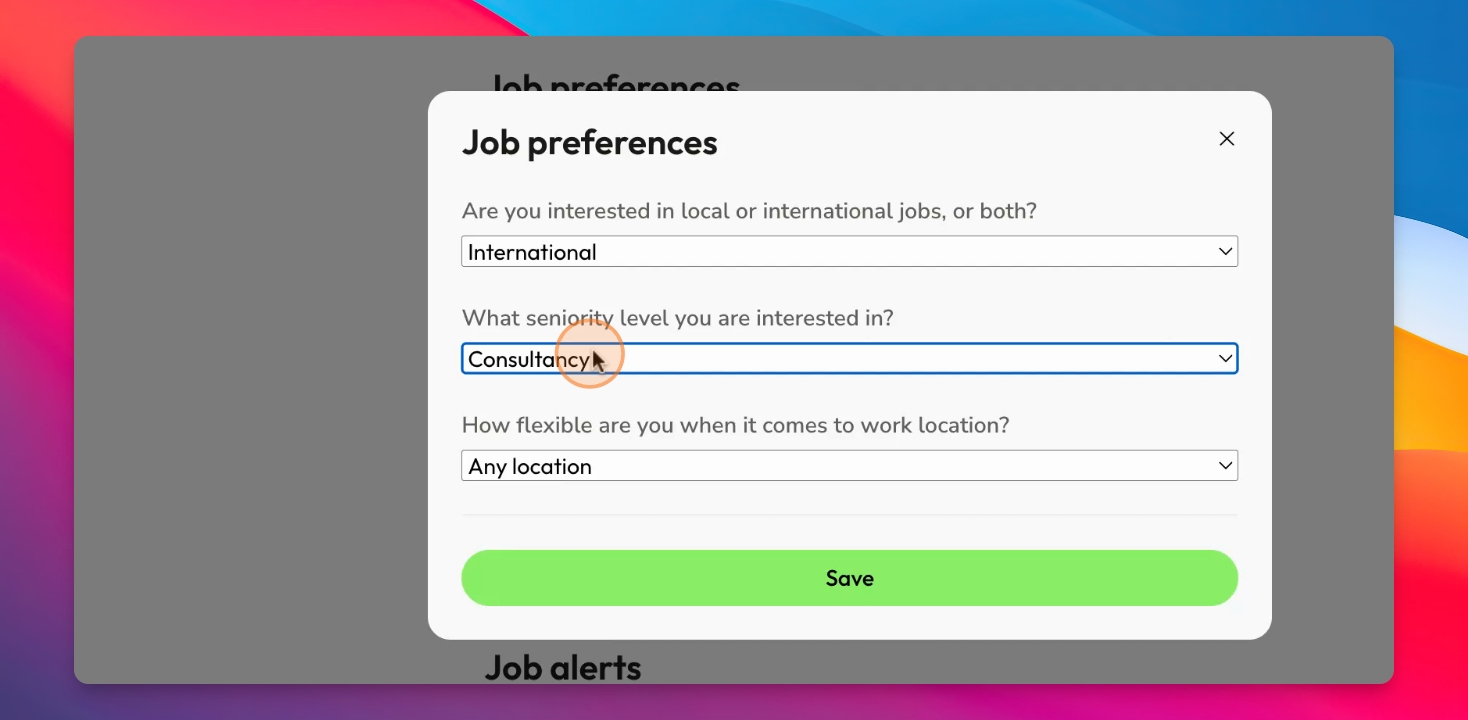
Step 5: Specify Job Location
Indicate if you are interested in local or international jobs.
Step 6: Relocation Preferences
Decide if you mind relocating or prefer jobs only in your current country.
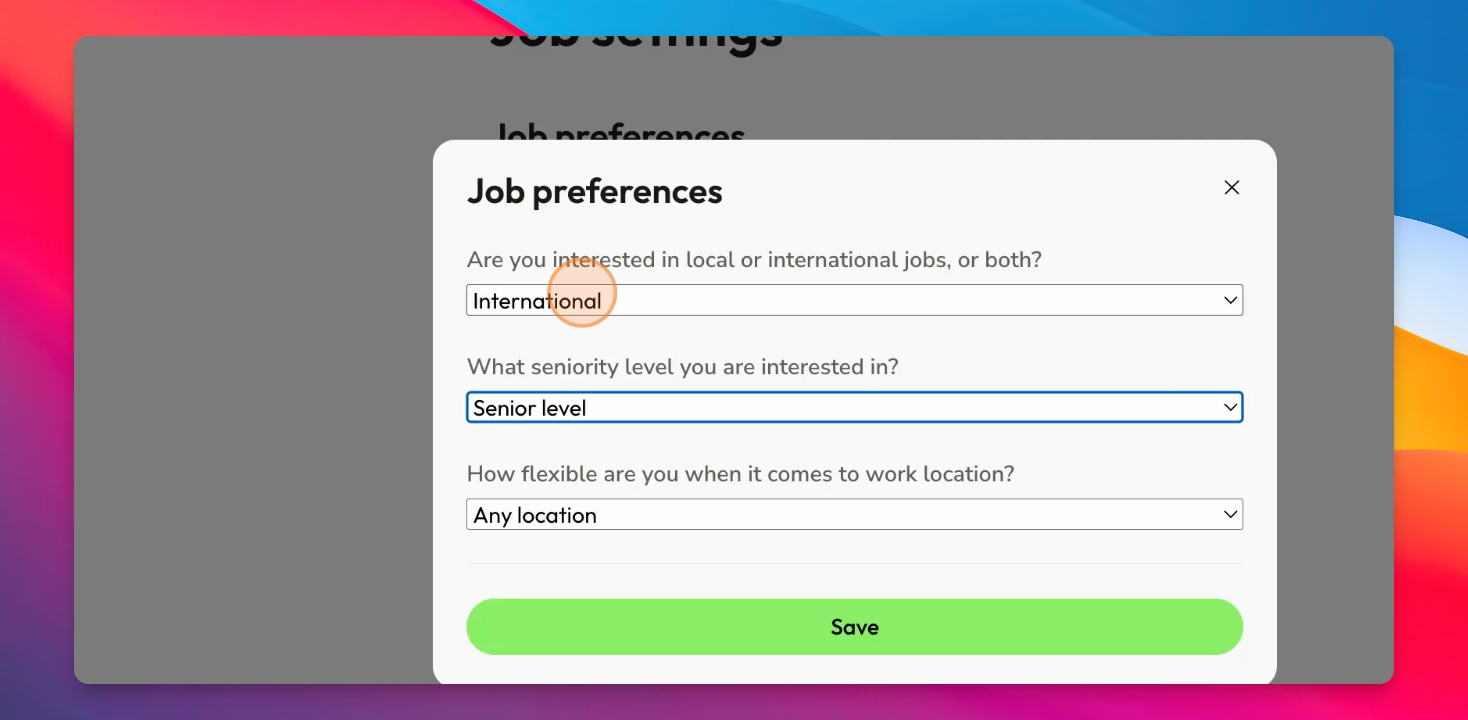
Step 7: Work Location Flexibility
Select how flexible you are regarding work locations, whether you prefer family duty stations or are open to hardship locations.
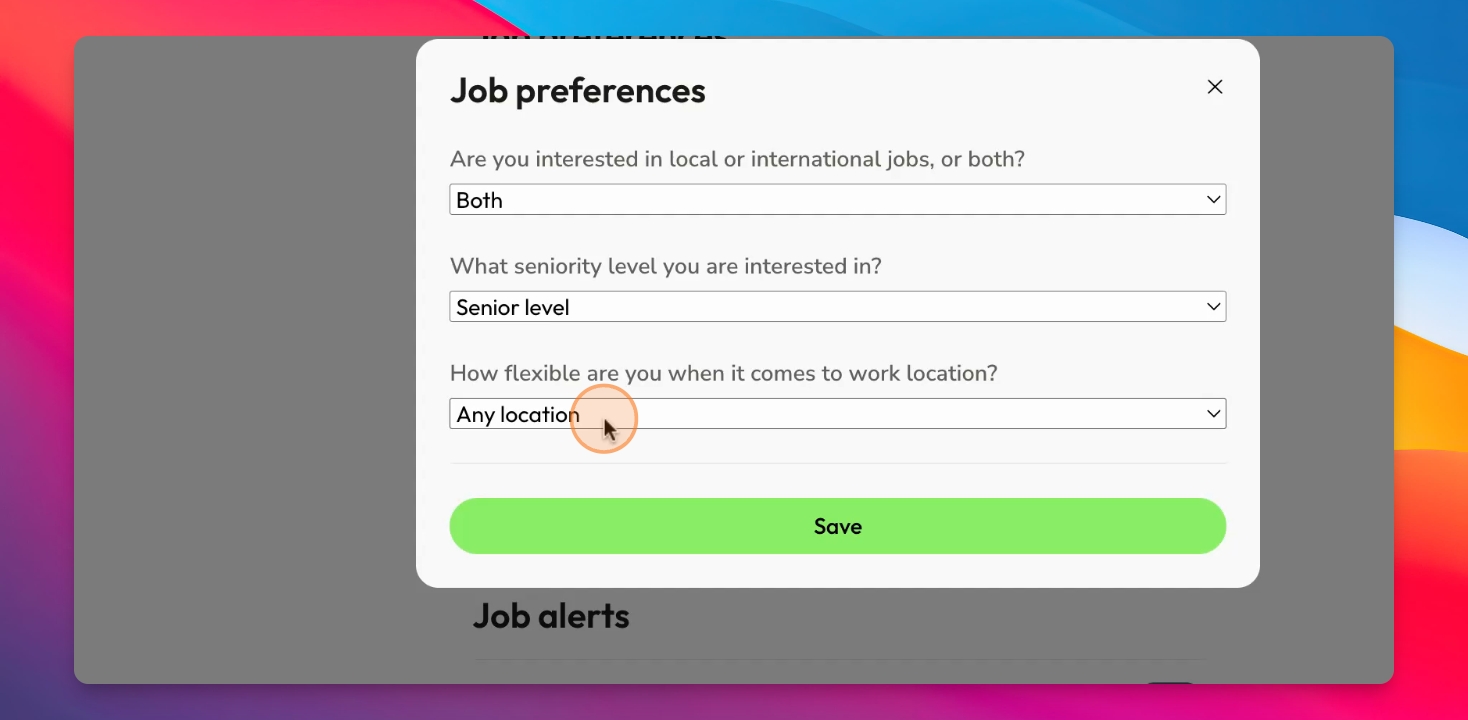
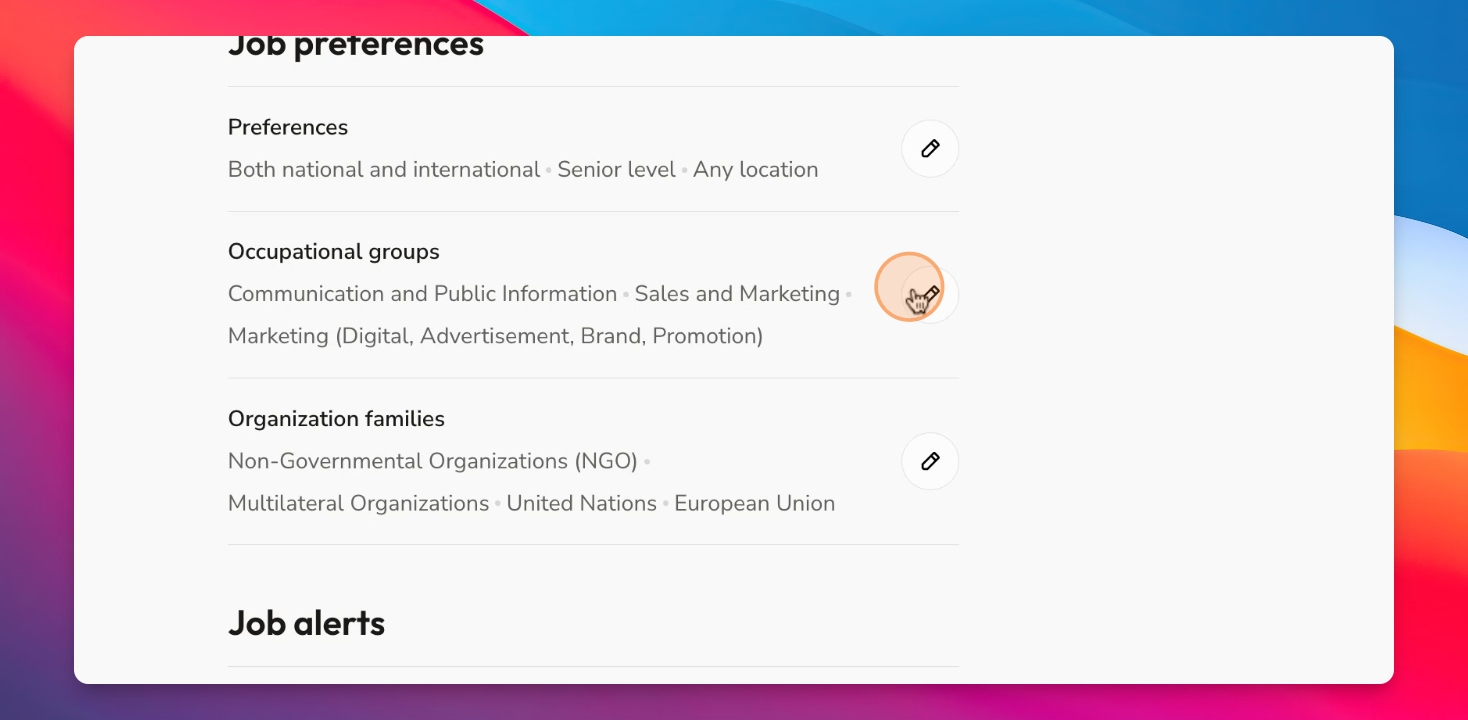
Step 8: Choose Occupational Groups
Select the occupational groups that best match your profile, such as communication or climate change.
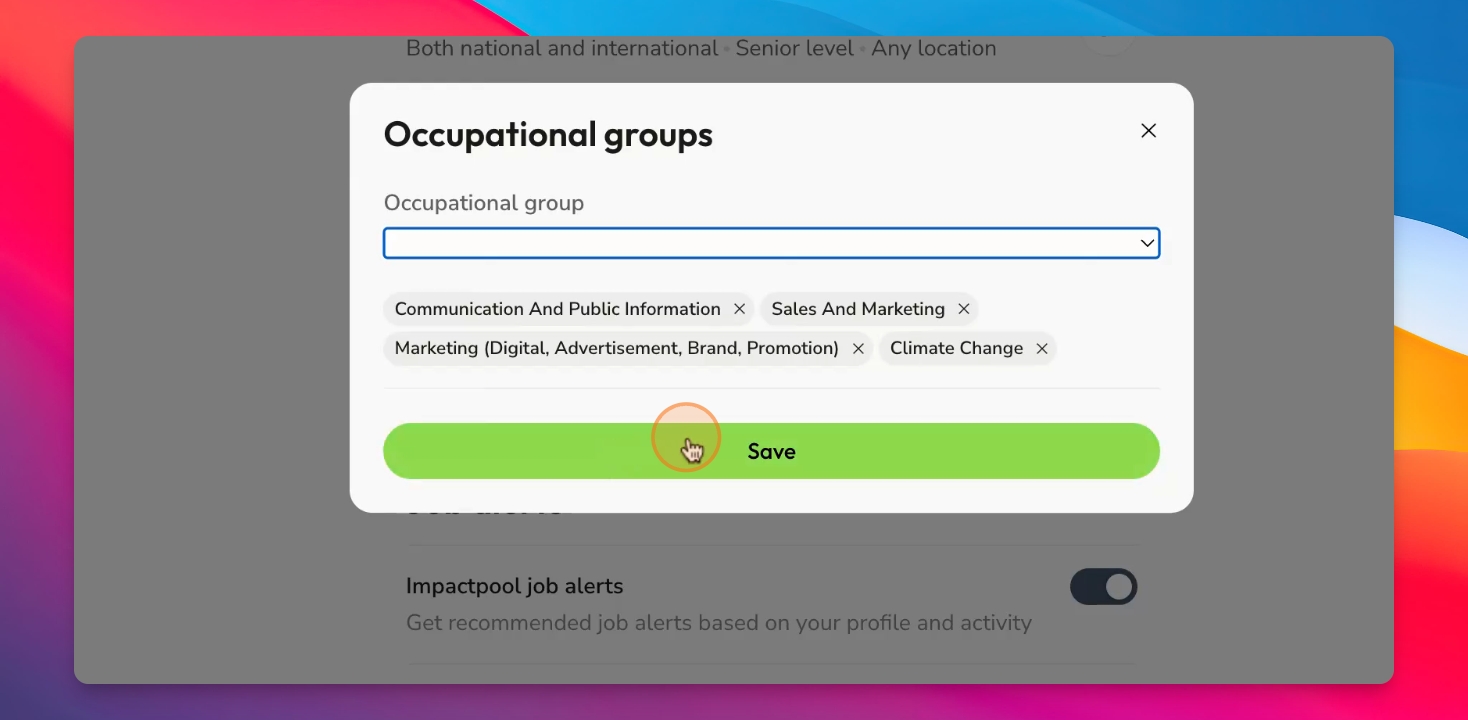
Step 9: Save Your Preferences
Click Save after choosing your occupational groups and organizational families.
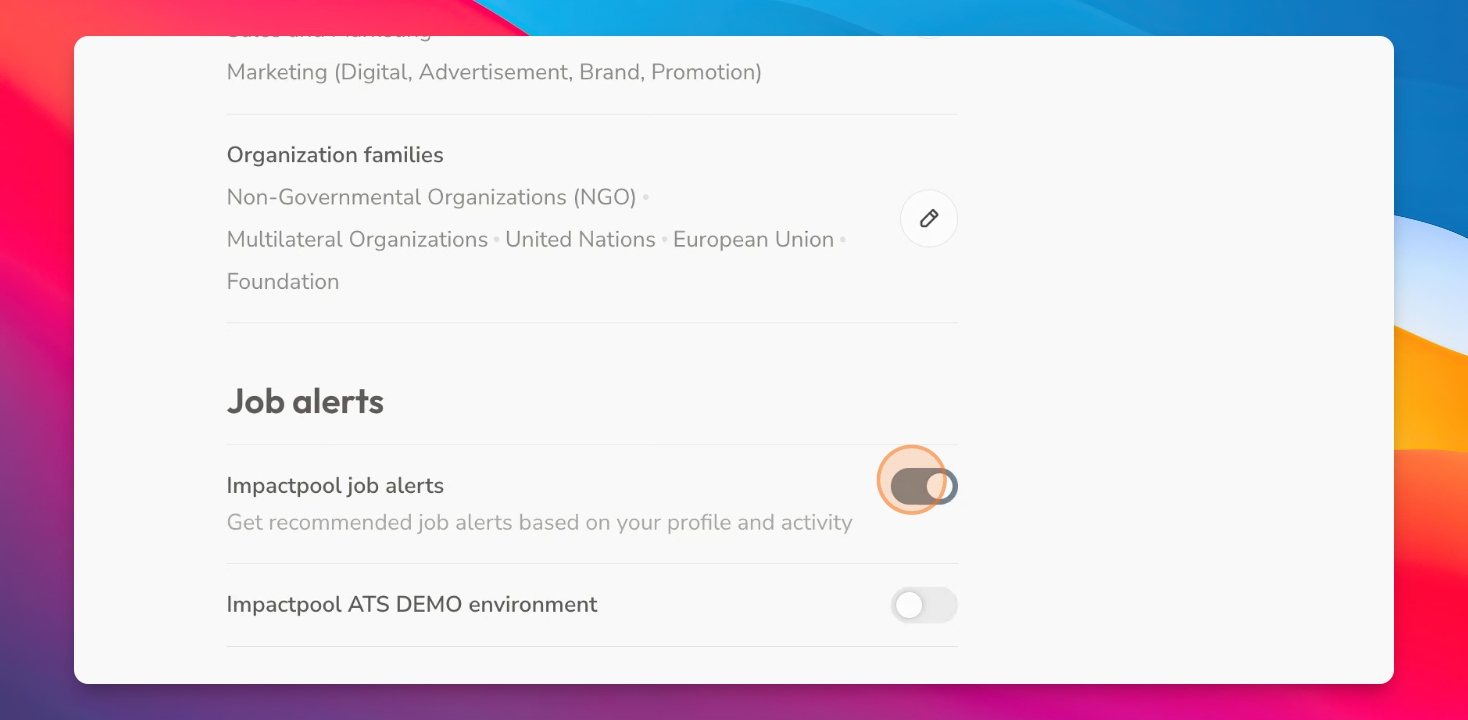
Step 10: Manage Job Alerts
You can toggle your job alerts on and off at the bottom of the settings page.
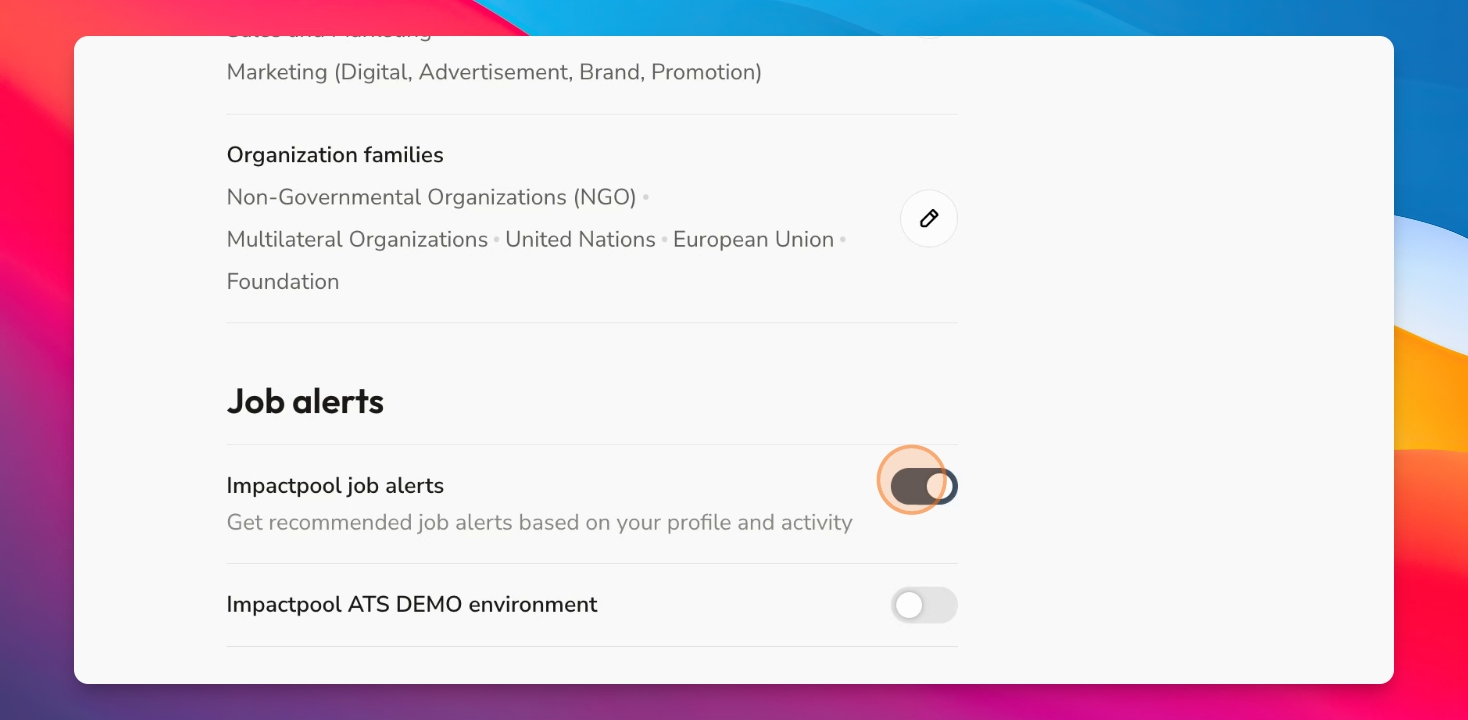
Step 11: Deselect Job Alerts
If you want to stop receiving job alerts, deselect them here.
Your job settings can be adjusted at any time, influencing the jobs you see in your dashboard under Recommended Jobs.
These recommended jobs are linked to your job preferences, allowing you to see multiple job recommendations.